Squarespace Pixel Installation Guide

How to Set Up and Connect Your Pixel to Your Squarespace Website

Setting up your Meta Pixel on your Squarespace website is crucial for tracking conversions, optimizing ads, and building targeted audiences. This step-by-step guide will help you seamlessly integrate your pixel and start collecting valuable data.

Step 1:

Copy Your Meta Pixel ID in Authoritie

  • Log into your Authoritie account.
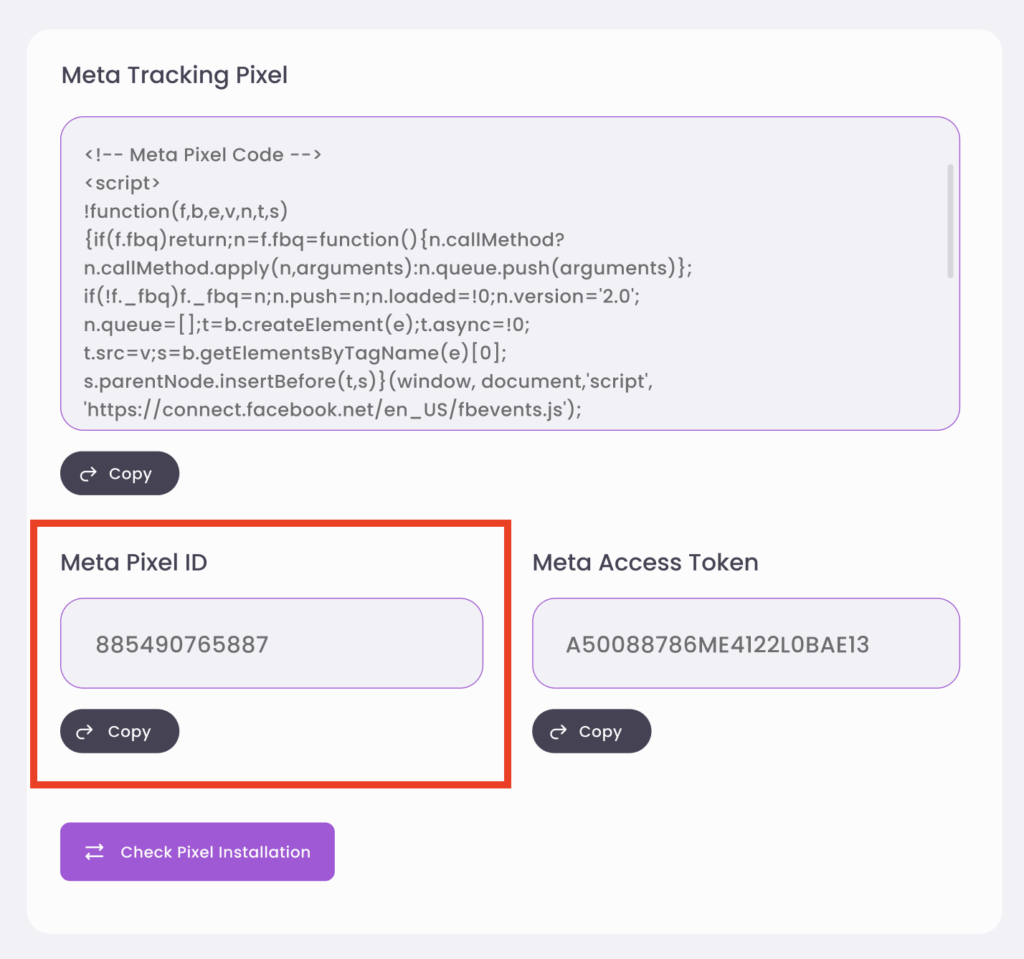
  • Navigate to Tracking from the dashboard.
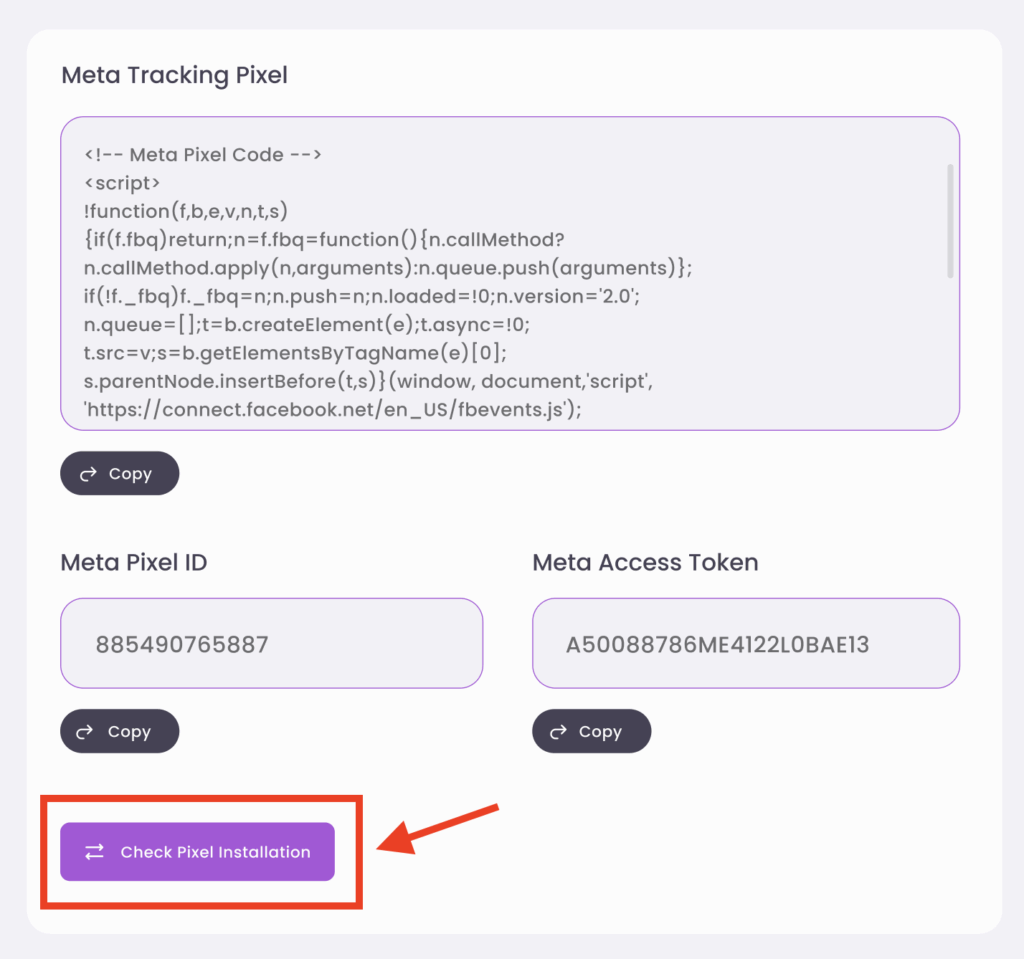
  • Copy your Meta Pixel ID from the Meta Tracking Pixel area.

Step 2:

Remove any old pixel code (optional)

If you set up Meta Pixel by adding the code to code injection, you’ll need to remove the code to use Squarespace’s new built-in integration. Removing the code won’t affect your data in Facebook, as long as you add your Meta Pixel ID shortly after removing the code.

  • Log into your Squarespace site.
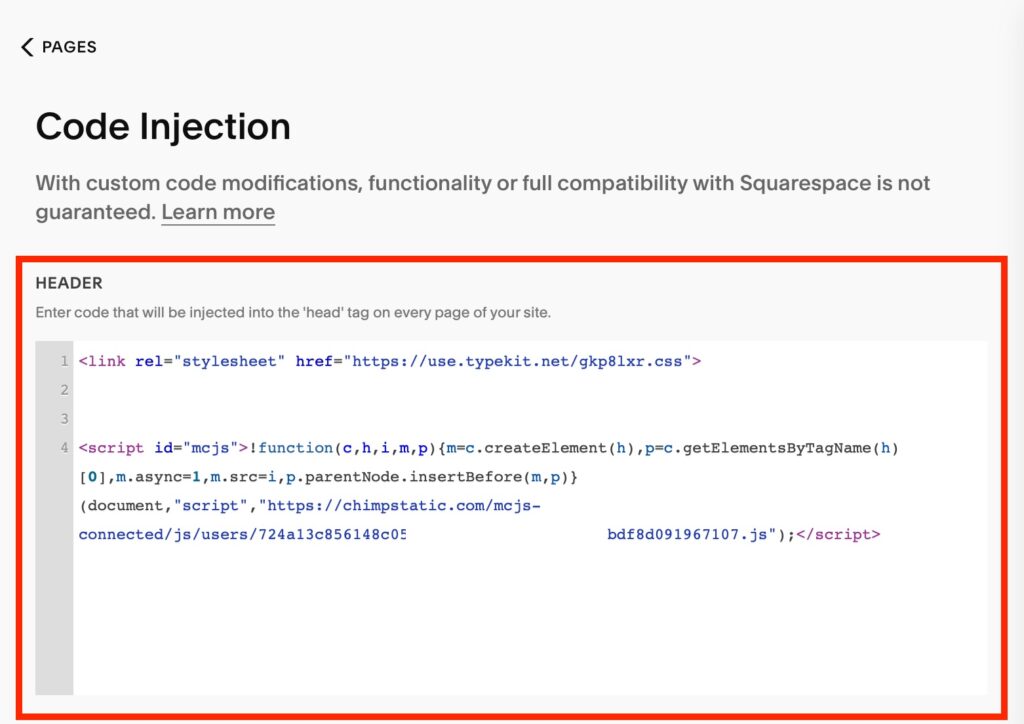
  • Open the Code Injection panel.
  • In the Header field, delete any pixel code. Only delete the code beginning and ending with <– Meta Pixel Code -->. Be careful, deleting anything else in this field could break other site customizations added in code injection.
  • In the Order Confirmation Page field, look for similar pixel code and delete it.
  • If you have any Facebook code on individual pages, remove it from the Page Header Code Injection.
  • Click Save to confirm.

Step 3:

Add the Pixel ID to Your Squarespace Website

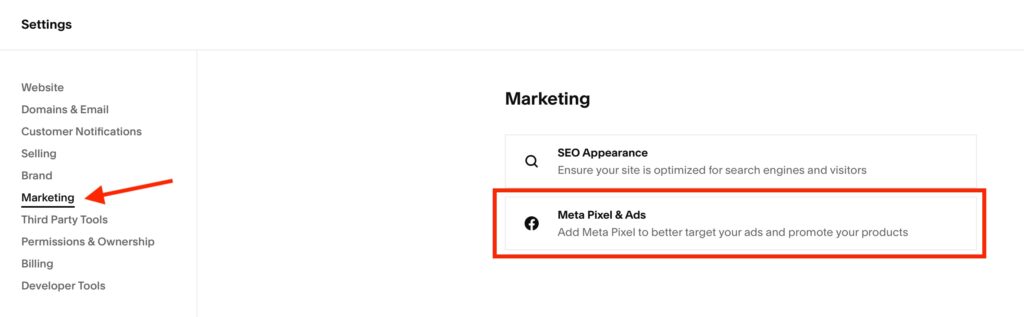
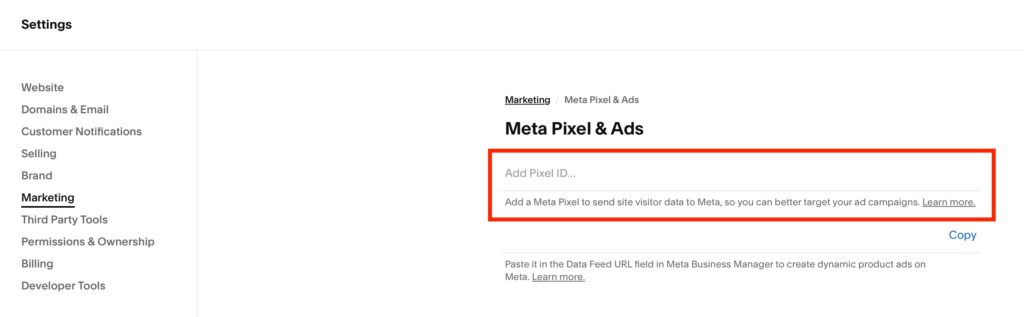
  • Open the Meta Pixel & Ads panel → PagesMeta Pixel & Ads (or Settings → Marketing → Facebook Pixel, depending on your version).
  • Paste your Pixel ID into the provided field.
  • Click Save to confirm.

Step 4:

Verify Your Pixel Installation

  • Return to your Authoritie account.
  • Under Tracking, click on the Check Pixel Installation button to confirm the status of your pixel.